


Planitude
Sign inSign up

Integrations

Planitude connects to the tools your team already uses

The plan stays in Planitude; everything else stays where people work. Tasks sync with Jira and Azure DevOps, updates reach Slack and Microsoft Teams, deadlines appear in your calendar, and your AI assistant reads and updates the plan. Each connection takes a few clicks and can be removed at any time.

All integrations are included for free.

Where to find it

Everything starts from the project

Open a project, choose ⋯ in the top bar, then Integrations or Notifications. Each app has its own page with the connection status, the settings and a disconnect button.

  • Project owners and editors can connect; viewers see the status
  • Connected apps appear at the top, the others by category
  • Calendar and email reminders are personal settings in your profile
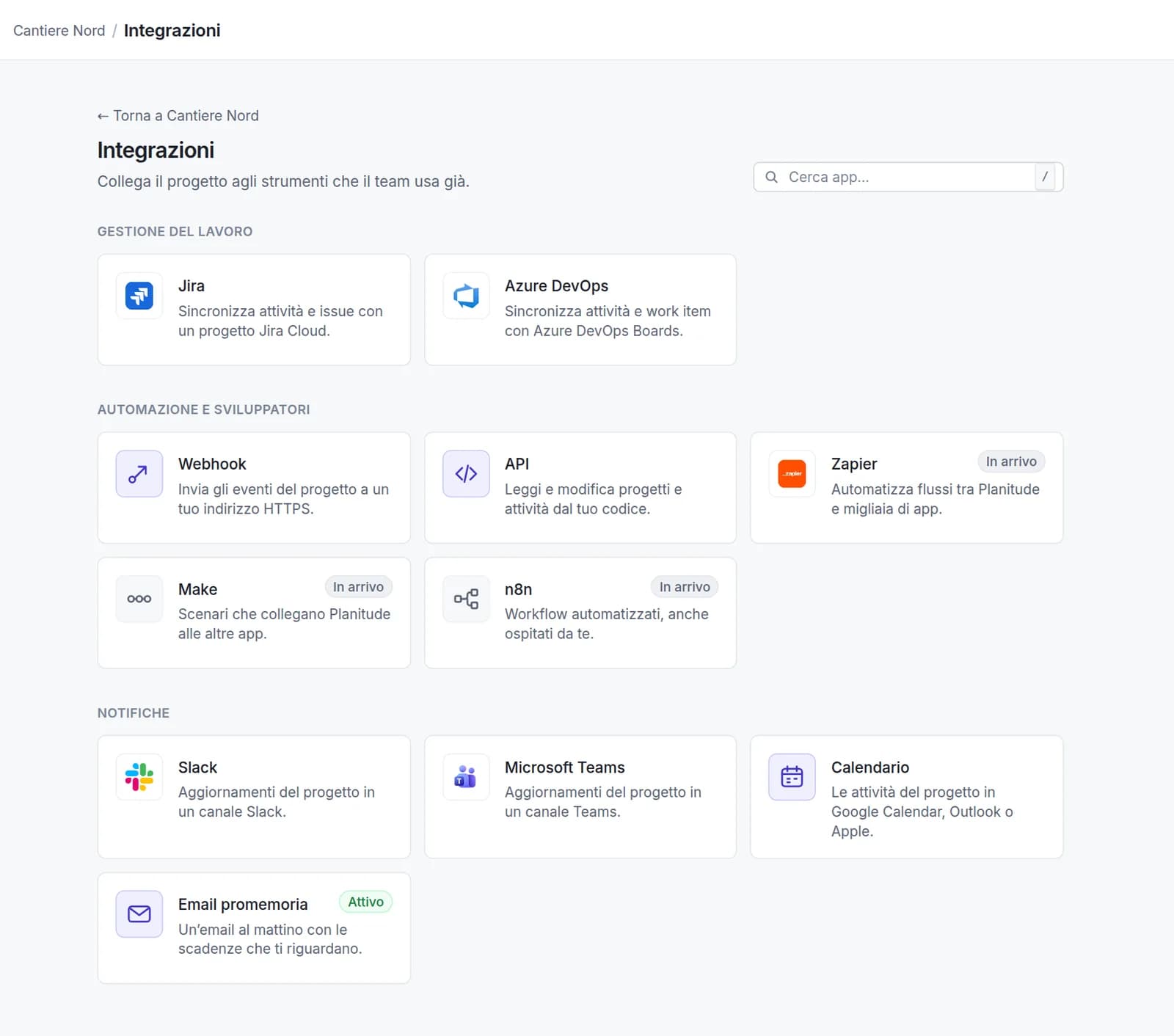
Integrations catalog of a Planitude project with Jira, Azure DevOps, webhooks, API, Zapier, Make, n8n, Slack, Microsoft Teams, calendar and email
The integrations catalog of a test project.

How it works

Three steps, then it runs on its own

For each main integration: how to connect it, what travels in which direction and who has the last word when both sides change the same thing.

Frequently asked questions

Do the integrations cost anything?

No. Every integration is included in Planitude, which is free. You only need your own access to the other tool (for example a Jira, Slack or Microsoft 365 account) under its own terms.

How are my accounts protected?

Connections use the official sign-in of each service (OAuth) whenever possible. Tokens and addresses are encrypted at rest, never shown in full and never written to logs. Incoming messages from Jira, Azure DevOps and Slack are verified before they are used.

What does the external app see?

Only what the connection needs. Jira and Azure DevOps receive the tasks of the connected project; Slack and Teams receive the updates you choose; AI assistants see only the projects you can open, with your role, and with read-only access they cannot change anything.

How do I disconnect an integration?

From the app's page in the project, with Disconnect, at any time. Nothing is deleted: tasks stay in Planitude, issues and messages stay in the other tool. Connected AI apps are revoked from Profile → API keys.

Who can connect a project?

The owner and the editors of the project. Viewers see the status of the connections but cannot change them. Calendar links and email reminders are personal and everyone manages their own.

Do you support Jira Data Center or Server?

Not at the moment: the integration works with Jira Cloud. For other systems you can use the REST API and the webhooks.

Guides and documentation

Connect your first tool in two minutes

Create a free account, open a project and choose Integrations from the ⋯ menu.

The trademarks mentioned (Jira, Azure DevOps, Slack, Microsoft Teams, Microsoft Outlook, Microsoft PowerPoint, Microsoft Project, Visual Studio Code, Google Calendar, Gemini, Apple Calendar, ChatGPT, Codex, Claude, Cursor, Zapier, Make, n8n, Primavera) belong to their respective owners; Planitude is not affiliated with or endorsed by them.

Advertising keeps Planitude free