Planitude connects to the tools your team already uses
The plan stays in Planitude; everything else stays where people work. Tasks sync with Jira and Azure DevOps, updates reach Slack and Microsoft Teams, deadlines appear in your calendar, and your AI assistant reads and updates the plan. Each connection takes a few clicks and can be removed at any time.
Read and write projects and tasks; OpenAPI 3.1 reference.
How it works→
Zapier
Coming soon
Triggers and actions for thousands of apps.
Make
Coming soon
Scenarios with Planitude modules and instant triggers.
n8n
Coming soon
Community node, also for self-hosted n8n.
Files
Plans in and out, without retyping.
Microsoft Project
Available
Import .mpp, .mpt, .mpx and XML files; export to Microsoft Project XML.
Primavera P6
Available
Import Primavera P6 .xer and .pmxml files.
Export
Available
Microsoft Project XML, CSV, print and PDF.
Microsoft PowerPoint
Coming soon
Add-in that draws the Gantt chart on a slide.
Where to find it
Everything starts from the project
Open a project, choose ⋯ in the top bar, then Integrations or Notifications. Each app has its own page with the connection status, the settings and a disconnect button.
Project owners and editors can connect; viewers see the status
Connected apps appear at the top, the others by category
Calendar and email reminders are personal settings in your profile
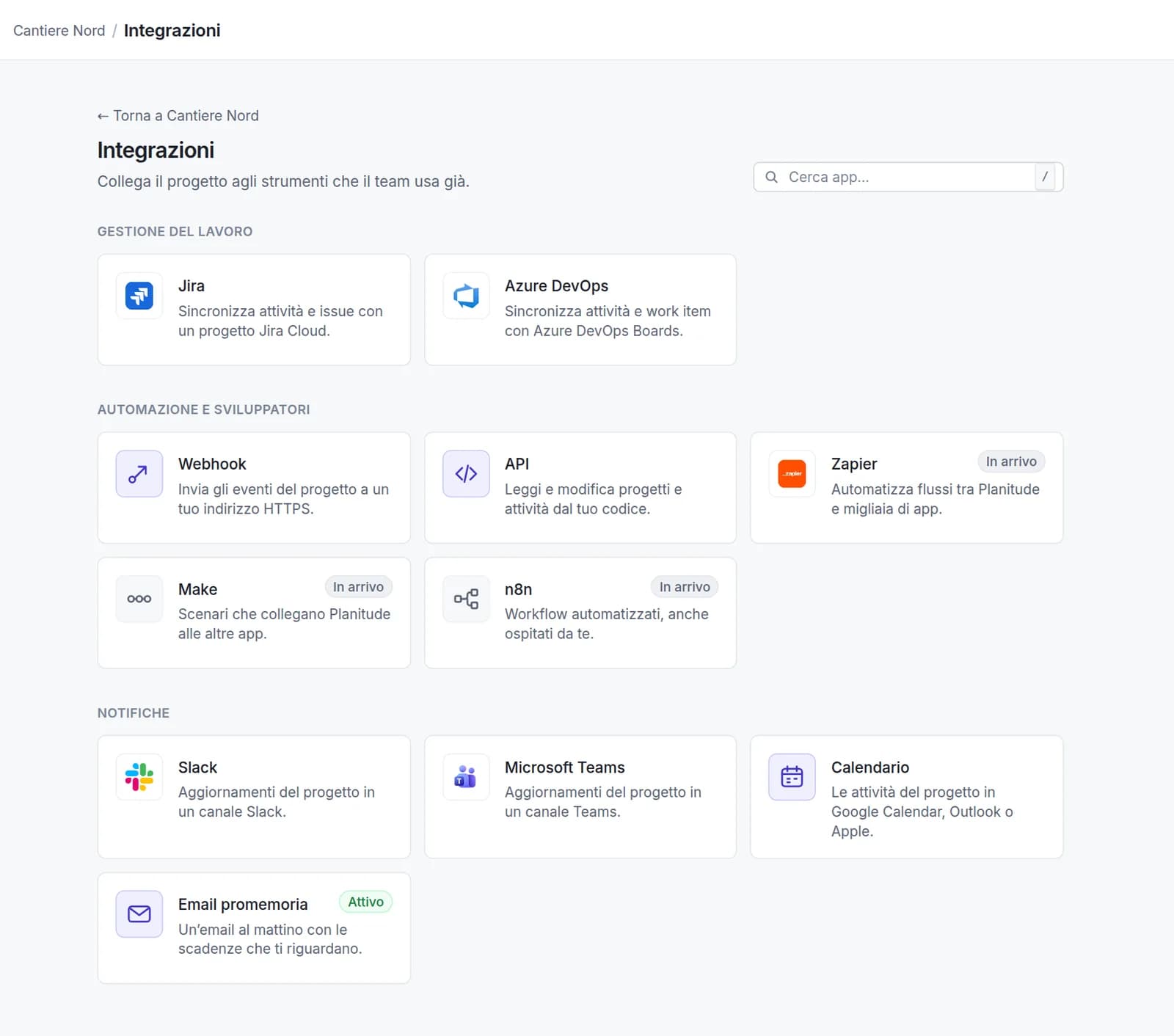
The integrations catalog of a test project.
How it works
Three steps, then it runs on its own
For each main integration: how to connect it, what travels in which direction and who has the last word when both sides change the same thing.
Work management
Jira integration: the Gantt chart and the issues stay aligned
Each task becomes an issue in the Jira project you choose, and every change travels on its own within seconds. Planitude decides the plan, Jira decides who works on what and how far along it is.
Jira Cloud
1
Connect Jira Cloud
From the project, open Integrations → Jira and sign in with Atlassian. Planitude acts with your Jira account and your permissions.
2
Choose the project
Pick the Jira project and the issue type, check how statuses map to progress and who is who. Then export the plan to Jira, import the existing issues, or both.
3
Keep working as usual
Move a bar in the Gantt and the issue changes; close an issue in Jira and the task reaches 100%. Conflicts and errors are listed on the integration page.
What travels where
PlanitudeJira
From Planitude to Jira: Task name and notes → issue summary and description (Planitude decides)
From Planitude to Jira: Start and finish → start date and due date (Planitude decides: a date changed in Jira is set back to the plan)
From Planitude to Jira: Finish-to-start dependencies → “blocks” links between issues
From Jira to Planitude: Issue status → task progress (Jira decides)
From Jira to Planitude: Assignee → person assigned to the task (Jira decides)
→ From Planitude to Jira← From Jira to Planitude
Example: the issue as it appears in Jira
WEB-12In progress
Lay the foundations
Dates
5 Oct → 8 Oct
Assignee
Anna Rossi
Link
blocks WEB-13
Nothing is ever deleted automatically: a deleted task leaves the issue in Jira with the label planitude-unlinked, and a deleted issue leaves the task in the plan.
Summary tasks can become Epics, with the issues of the phase underneath.
Jira Cloud only; Jira Data Center and Server are not supported.
The same model as Jira, for teams on Azure DevOps: each task becomes a work item, dependencies become Successor links, and state and assignee come back to the plan.
Azure DevOps Boards
1
Connect Azure DevOps
Sign in with your Microsoft work account, or paste a personal access token with Work Items (read and write) if your organization does not allow external apps.
2
Choose organization and project
Planitude detects the process (Agile, Scrum, Basic, CMMI). Choose the work item type and the state mapping, then export the plan, import the work items, or both.
3
Keep working as usual
Changes travel in both directions; every work item gets an “Open in Planitude” link back to the task.
What travels where
PlanitudeAzure DevOps
From Planitude to Azure DevOps: Task name and notes → work item title and description (Planitude decides)
From Planitude to Azure DevOps: Start and finish → start and target dates (Planitude decides)
From Planitude to Azure DevOps: Finish-to-start dependencies → Successor and Predecessor links
From Azure DevOps to Planitude: Work item state → task progress (Azure DevOps decides)
From Azure DevOps to Planitude: Assigned To → person assigned to the task (Azure DevOps decides)
→ From Planitude to Azure DevOps← From Azure DevOps to Planitude
Example: the work item as it appears in Azure DevOps
#1042In progress
Lay the foundations
Dates
5 Oct → 8 Oct
Assignee
Anna Rossi
Link
Successor: #1043
No automatic deletions in either direction.
Personal Microsoft accounts cannot use Microsoft sign-in with Azure DevOps: use a personal access token.
Phases can become Features or Epics, with the work items underneath.
Communication
Slack: project updates in the channel
The team sees what matters without opening the plan: completed tasks, moved deadlines, new assignments, plus a morning summary and a weekly one.
Slack
1
Add to Slack
From the project, open Notifications → Slack, choose the workspace and allow. Public channels are ready at once; for a private one, first type /invite @planitude there.
2
Choose channel and updates
Pick the channel, which updates to send, how to group close changes (from immediately to 60 minutes), the language and the time zone of the messages.
3
Read and ask
Updates arrive in the channel with a link to the task. Type /planitude status to get the project status: only you see the answer.
What travels where
PlanitudeSlack
From Planitude to Slack: Completed tasks, dates moved on critical tasks and milestones, new assignments
From Planitude to Slack: At 8:00: tasks due the next working day and overdue tasks
From Planitude to Slack: On Monday at 9:00: weekly summary with progress, delay against the baseline and next milestones
Both ways: /planitude status: you ask from the channel, Planitude answers only to you
→ From Planitude to Slack← From Slack to Planitude↔ Both ways
Example of a message in the channel
Planitude · 08:00
✅ Task completed
Excavation (SITE-4) completed by Anna Rossi · Riverside site
Open in Planitude →
Pause or disconnect in one click; when no other project uses the workspace, the Slack token is revoked.
The command only sees the projects connected to that channel.
Gantt chart for Microsoft Teams: updates in the channel and the plan in a tab
Two independent parts. Notifications go to a channel through a Teams Workflow, with no app to install. The Planitude tab shows the project's Gantt chart inside Teams.
Microsoft Teams
1
Create a Workflow in the channel
In Teams, open ⋯ next to the channel → Workflows → “Send webhook alerts to a channel”, then copy the address it shows at the end.
2
Paste it into Planitude
From the project, open Notifications → Microsoft Teams, paste the address and choose updates, grouping, language and time zone, as for Slack.
3
Add the Gantt tab
Add the Planitude app to Teams (your Teams administrator can upload it), add the tab to the channel and choose the project.
What travels where
PlanitudeMicrosoft Teams
From Planitude to Microsoft Teams: Completed tasks, dates moved on critical tasks and milestones, new assignments
From Planitude to Microsoft Teams: Morning summary at 8:00 and weekly summary on Monday
From Planitude to Microsoft Teams: Gantt chart of the project in a tab, read-only, for people who have access to the project
→ From Planitude to Microsoft Teams← From Microsoft Teams to Planitude
Example of a message in the channel
Workflows · 08:00
✅ Task completed
Excavation (SITE-4) completed by Anna Rossi · Riverside site
Open in Planitude →
Messages are posted by Microsoft's “Workflows” bot: its name and icon cannot be changed.
The Workflow address is encrypted and only shown shortened; the tab signs in with your Planitude account.
Google Calendar, Outlook and Apple Calendar: deadlines next to your meetings
A private calendar link puts your tasks and milestones in the calendar you already use; a morning email reminds you what is due.
Google Calendar
Microsoft Outlook
Apple Calendar
Email reminders
1
Create your link
In your profile, under Calendar, create the private link: all projects or one, only your tasks or all of them.
2
Add it to your calendar
In Google Calendar, Outlook or Apple Calendar, add a calendar “from URL” or “subscribe” and paste the link.
3
Let it update itself
Changes to the plan reach the calendar at the refresh interval of your calendar app. Email reminders are on by default.
What travels where
PlanitudeCalendar
From Planitude to Calendar: Tasks and milestones → calendar events (read-only)
From Planitude to Calendar: Email at 8:00 with tasks due the next working day, overdue tasks and deadlines
→ From Planitude to Calendar← From Calendar to Planitude
The link can be revoked and regenerated at any time; the old one stops working.
Reminders can be turned off from your profile or with one click from the email.
AI and MCP
ChatGPT, Claude, Gemini and coding tools, through MCP
Planitude has an MCP server: your assistant can answer “are we on time?”, list late tasks or move a phase, always with your permissions.
ChatGPT
Claude
Gemini
Claude Code
Codex
Cursor
Visual Studio Code
1
Add Planitude
In ChatGPT, Claude.ai or Gemini, add a connector with the server address shown in Profile → API keys. In Claude Code, Codex, Cursor, Gemini CLI or VS Code, add the same address to the MCP configuration.
2
Sign in and allow
Sign in to Planitude and choose read-only or read and write access. Developer tools can also use an API key created in your profile.
3
Ask
“Which tasks are late?”, “What is on the critical path?”, “Move testing one week later.” The assistant works on the real plan.
What travels where
PlanitudeAssistant
From Assistant to Planitude: The assistant reads projects, tasks, critical path, workload, risk and portfolio
Both ways: With write access it creates and updates tasks and dependencies; it cannot delete projects or tasks
→ From Planitude to Assistant← From Assistant to Planitude↔ Both ways
The Planitude app in the ChatGPT directory is under review by OpenAI; meanwhile ChatGPT connects with the server address.
In Gemini, custom apps are currently available only for personal accounts in the United States (a Google limit).
Connected apps are listed in Profile → API keys → Connected apps, where you can revoke them.
No. Every integration is included in Planitude, which is free. You only need your own access to the other tool (for example a Jira, Slack or Microsoft 365 account) under its own terms.
How are my accounts protected?
Connections use the official sign-in of each service (OAuth) whenever possible. Tokens and addresses are encrypted at rest, never shown in full and never written to logs. Incoming messages from Jira, Azure DevOps and Slack are verified before they are used.
What does the external app see?
Only what the connection needs. Jira and Azure DevOps receive the tasks of the connected project; Slack and Teams receive the updates you choose; AI assistants see only the projects you can open, with your role, and with read-only access they cannot change anything.
How do I disconnect an integration?
From the app's page in the project, with Disconnect, at any time. Nothing is deleted: tasks stay in Planitude, issues and messages stay in the other tool. Connected AI apps are revoked from Profile → API keys.
Who can connect a project?
The owner and the editors of the project. Viewers see the status of the connections but cannot change them. Calendar links and email reminders are personal and everyone manages their own.
Do you support Jira Data Center or Server?
Not at the moment: the integration works with Jira Cloud. For other systems you can use the REST API and the webhooks.
Planitude integrations: Jira, Azure DevOps, Slack, Teams, calendars, ChatGPT, Claude and Gemini via MCP, API and webhooks, .mpp and .xer files. Which to choose.
Syncing a Gantt chart with Jira Cloud: who owns dates and status, dependencies as Blocks links, conflicts and deletions. A step-by-step guide with Planitude.
Project notifications in Slack and Microsoft Teams with Planitude: what reaches the channel, noise filters, the Monday summary, Teams Workflows and a Gantt tab.
The trademarks mentioned (Jira, Azure DevOps, Slack, Microsoft Teams, Microsoft Outlook, Microsoft PowerPoint, Microsoft Project, Visual Studio Code, Google Calendar, Gemini, Apple Calendar, ChatGPT, Codex, Claude, Cursor, Zapier, Make, n8n, Primavera) belong to their respective owners; Planitude is not affiliated with or endorsed by them.
Advertising keeps Planitude free
Cookies, analytics and advertising
We use a small number of essential cookies for your session and language. Analytics cookies (Google Analytics) and advertising cookies are optional: until you make a choice none of them is set and nothing from an ad network is loaded. Read the cookie policy